Actions menu
What each SoftSDC action does and when to use it, from entering your PIN and restarting services to commands, local audits and test invoices.
The actions menu holds system tasks and maintenance tools. Open it from the menu icon at the top right of the home screen.
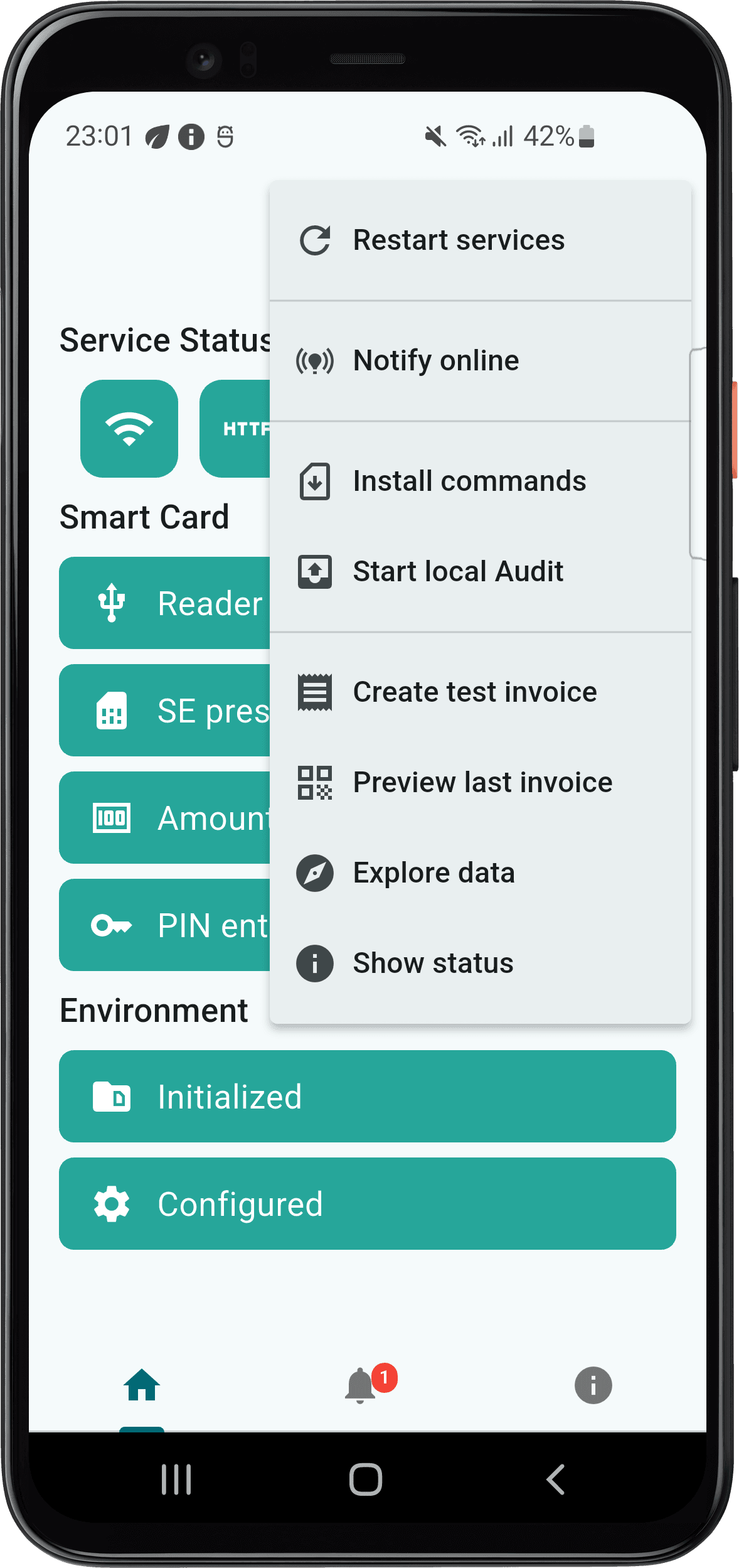
Menu names can differ slightly between Windows and Android and between versions. The screenshot shows the Android app.
Enter PIN
Your PIN unlocks the secure element on the smart card so SoftSDC can sign invoices. On Android, select the Enter PIN tile on the home screen.
There is no submit button. SoftSDC checks the PIN as soon as you type the last digit, and shows a short animation. If you make a mistake, use the clear button and start again.
How SoftSDC keeps your PIN
SoftSDC keeps the PIN in temporary memory for the session, so you do not enter it for each invoice.
- It never stores the PIN permanently.
- It keeps the PIN only in volatile memory, encrypted.
- It clears the PIN when you close the app, restart the device or after a period of inactivity.
PIN attempts
5 attempts, then the card locks
After a wrong PIN, SoftSDC shows how many attempts are left. After 5 wrong attempts, the secure element locks and cannot be used. Contact your Tax Authority to reset the card.
The count goes back to 5 after you enter the correct PIN.
For PIN and card error codes, see smart card and PIN troubleshooting.
Restart services
Restarts everything SoftSDC runs:
- Stops and starts the API service
- Resets the connection to the secure element
- Restarts the background tasks for receipts and syncing
Use it when the card reader has connection problems, the API responds slowly, or a setting needs a restart.
A restart takes about 10 to 15 seconds. The app may not respond during that time.
Enter your PIN again after a restart. The restart clears all security sessions.
Download init commands
Gets the setup data SoftSDC needs from the Tax Authority. You need an internet connection. It:
- Gets cryptographic parameters and configuration settings
- Sets up a secure channel with the Tax Authority
- Gets verification certificates, tax rate tables and system parameters
It usually takes 30 to 60 seconds.
Run it at least once during setup, after major updates, and when support asks you to.
Notify online
Tells the Tax Authority server right away that your SoftSDC is online. It sends device identifiers, the software version and the secure element status. It takes a few seconds and needs an internet connection.
Start local init
Starts initialization from local files instead of downloading from the server. Use it when the internet is limited or when you have approved initialization files.
You need the smart card inserted, the PIN entered, and the configuration files in the expected location on the device.
Audit
SoftSDC sends audit packages to the Tax Authority in the same format in two ways: remote audit and local audit.
- All data is encrypted with AES-256 using the encryption key defined in the technical instructions.
- SoftSDC keeps audit data until it receives a proof of audit (POA) from the Tax Authority. POA runs periodically.
- Each audit package is a JSON file named after the UID of the secure element.
- SoftSDC saves the audit package before it sends the response to the POS.
To see where audits fit in the life of a receipt, read how SoftSDC audits and reconciles receipts.
Start remote audit
Remote audit starts on its own whenever SoftSDC is online and can reach the Tax Authority server. SoftSDC sends audit packages continuously, and also sends any packages it could not send before.
Start local audit
Use local audit when the device cannot connect to the internet, for example because of the device or the local infrastructure.
You start it by inserting an SD card or a USB flash drive. On mobile devices without USB or SD support, use a local folder or cloud drive. SoftSDC saves the audit files there instead of sending them, in a folder named after the secure element UID. It creates the folder if needed and shows a notification when the audit starts, runs and finishes.
No internet at all? Take the SD card or USB drive to a tax office. A tax officer will do steps 2, 3, 4 and 7 for you.
Create test invoice
Creates a test fiscal receipt without a POS. Use it to check that SoftSDC is set up correctly and the full signing process works.
SoftSDC:
- Creates a sample invoice with set items, tax rates and payment details
- Runs it through fiscalization
- Signs it
- Sends it to the Tax Authority when online
Preview last invoice
Shows the most recent fiscal invoice: all items, tax calculations, payment details and fiscal identifiers. You can print it or save it as a PDF.
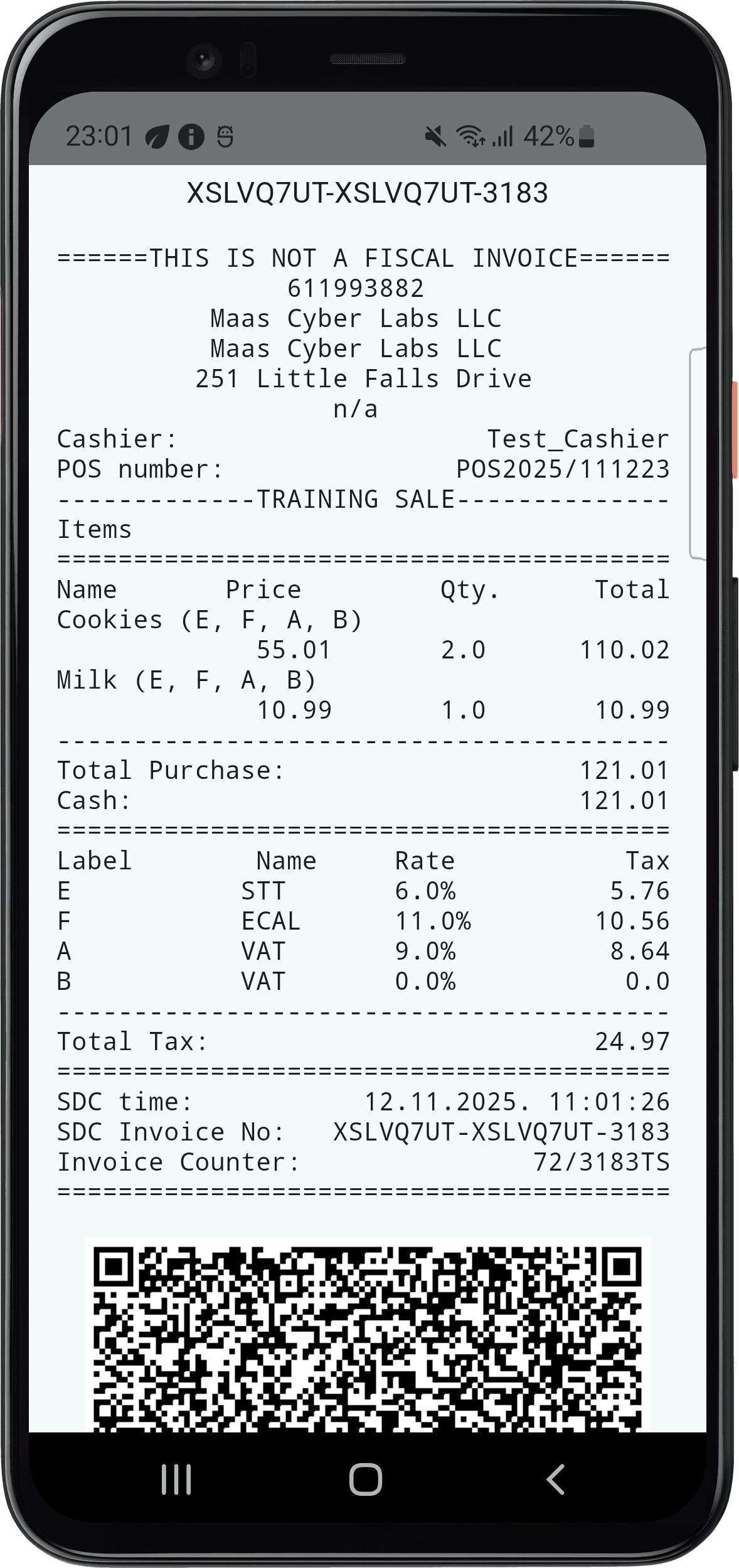
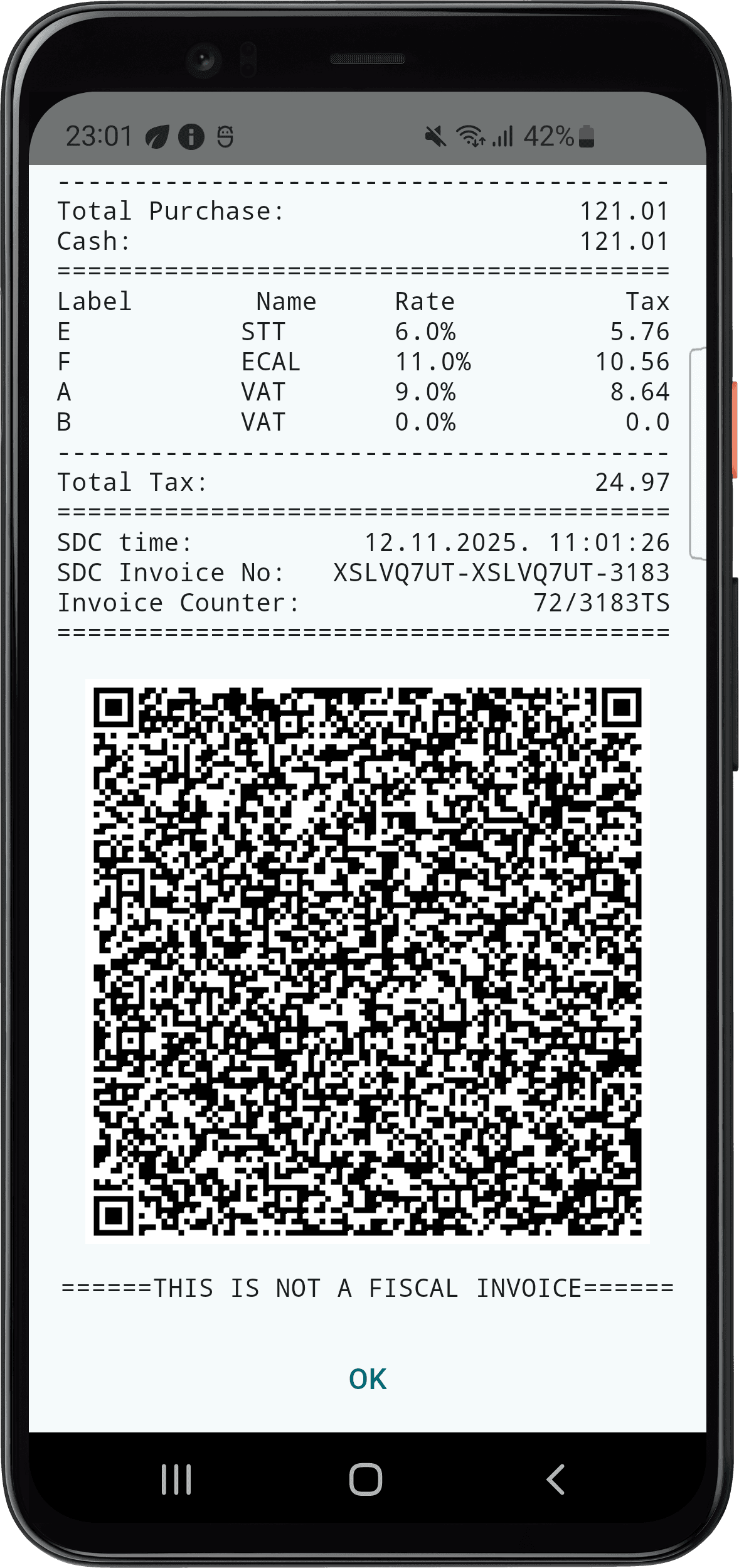
Use it to check that a sale went through, confirm details with a customer, or look into a signing problem.
Explore data
Lets you browse fiscal data stored on the device, including invoice history, audit logs and transaction records.
Show status
Shows the current status of SoftSDC.
Related pages
Home screen
Read the SoftSDC home screen. Learn what the service status icons, smart card tiles, unconfirmed amount and environment tiles tell you.
Notifications
Understand SoftSDC notifications. Learn the color levels, where to see active and past alerts, and how to receive them on Windows and Android.