Getting started
Launch SoftSDC for the first time, choose a trial or license, connect your card reader, insert your smart card, enter your PIN and test it.
Before you start
You need SoftSDC installed, a smart card reader, your Tax Authority smart card and its PIN. The quick start lists every step from download to your first invoice.
First launch
Open SoftSDC
On Windows, use the desktop shortcut the installer created. On Android, open SoftSDC from your app list. The services start on their own.
Choose a trial or a license
On the welcome screen, select Start Trial for the free 7-day trial, or Activate License to enter your license key. The trial has every feature.
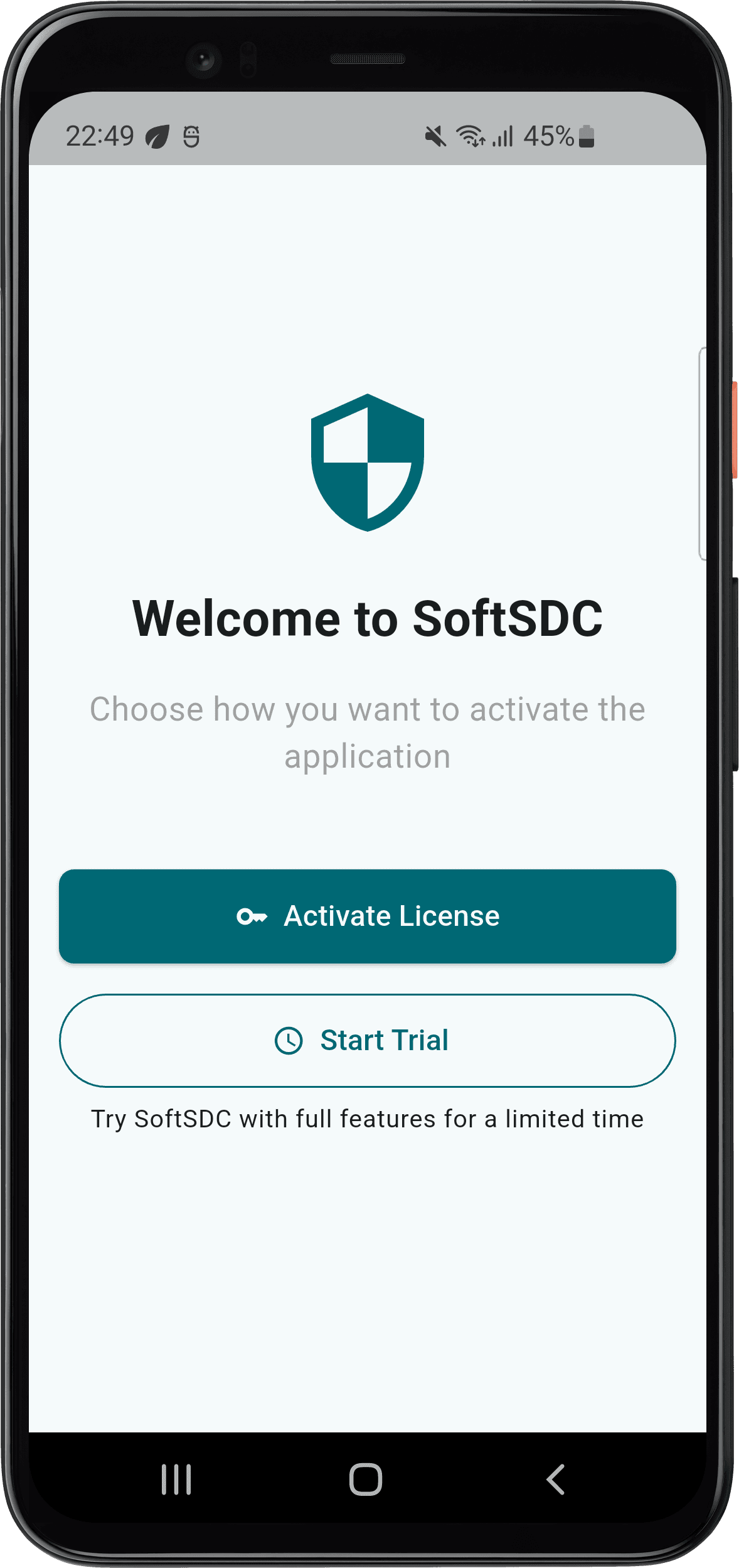
See licensing for how to activate.
Connect the card reader
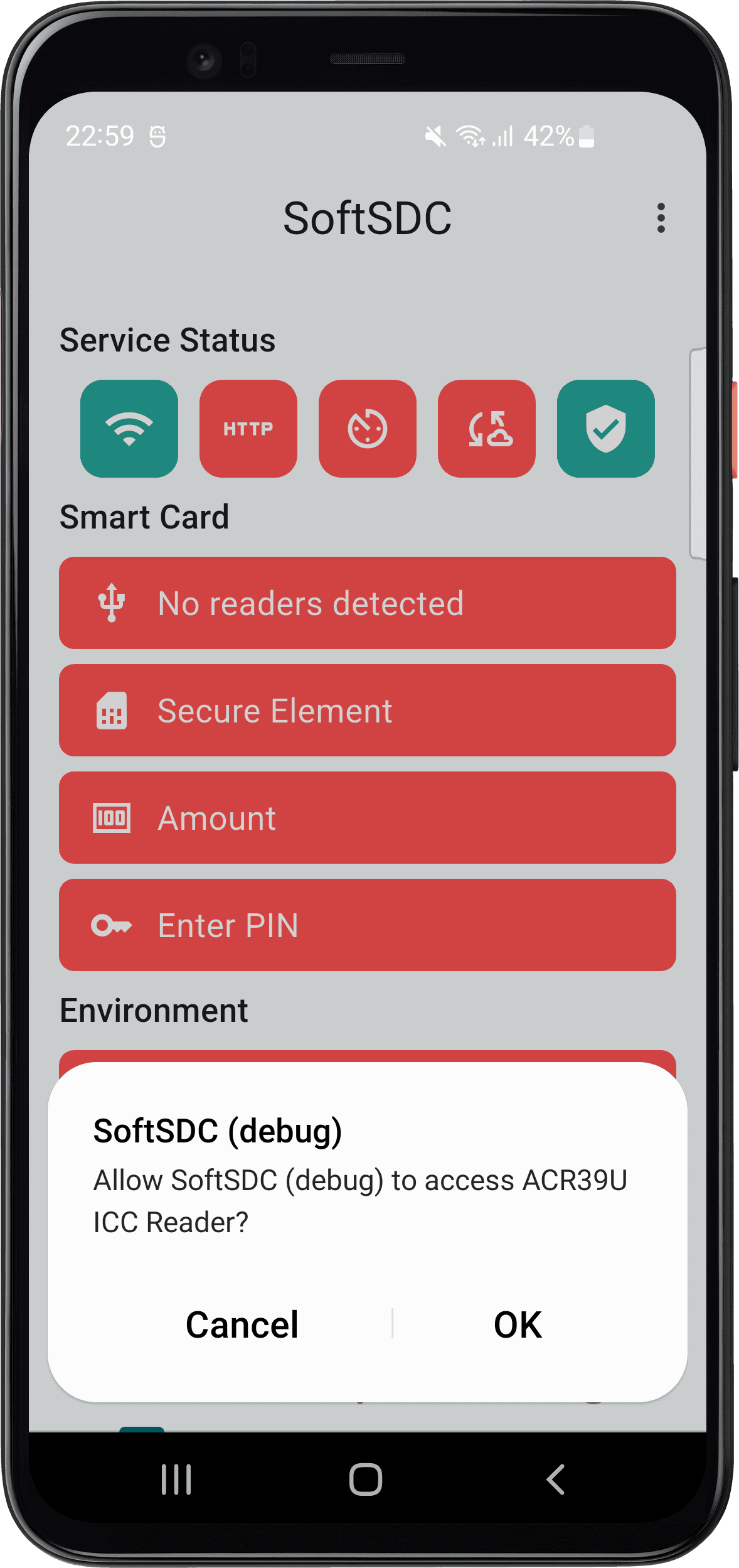
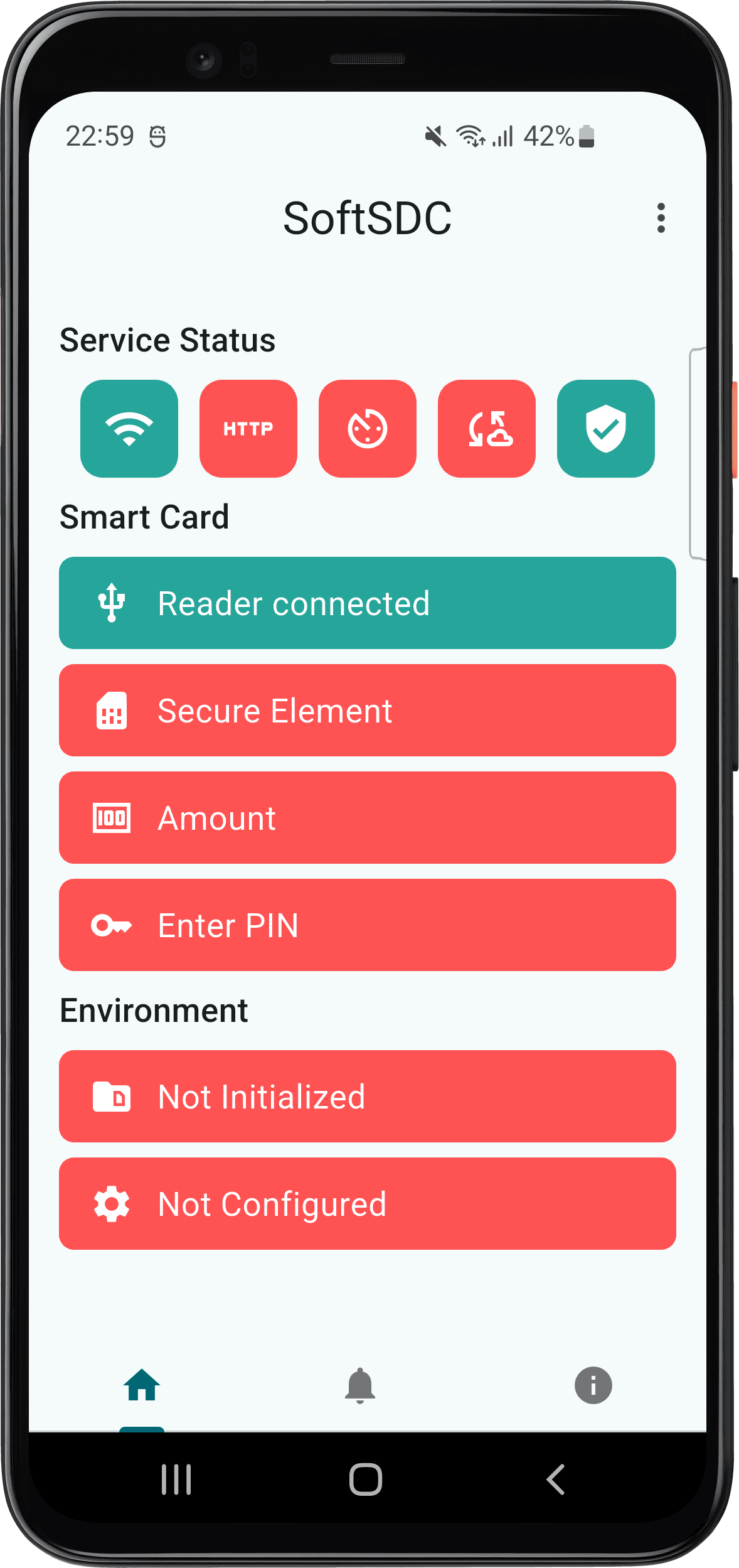
Plug the reader into a USB port. On Android, use an OTG adapter. The first time, a permission dialog appears. Select OK or Grant permission.
Insert your smart card
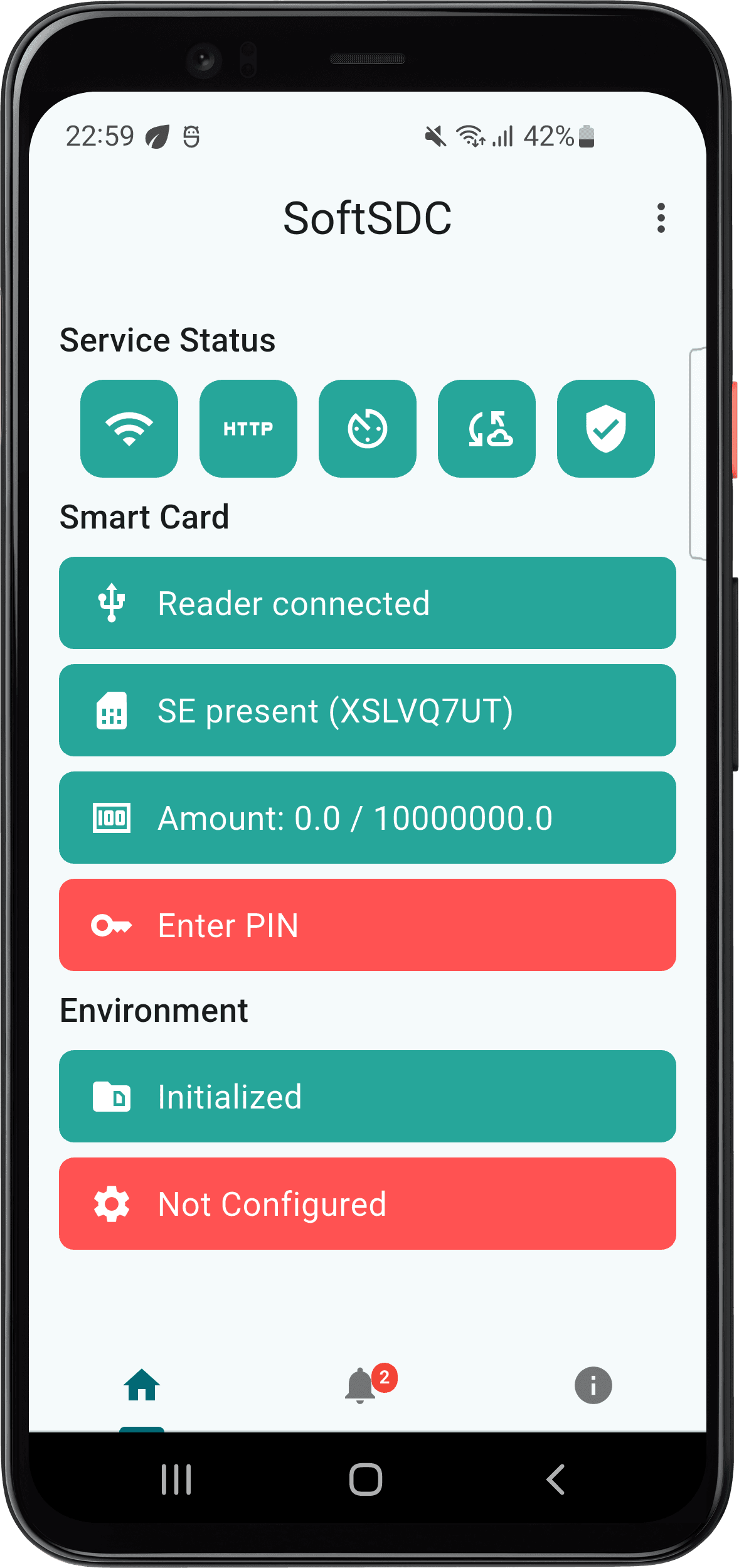
Insert the smart card into the reader. SoftSDC detects it and shows SE present with the card UID on the home screen.
Enter your PIN
Select the red Enter PIN tile on the home screen and type your 4-digit PIN. There is no submit button. SoftSDC checks the PIN as soon as you enter the last digit.
You have 5 attempts
After 5 wrong PINs, the card locks and cannot be used. Only your Tax Authority can unlock it.
SoftSDC keeps the PIN in temporary memory for the session. It clears the PIN when you close the app, restart the device or after a period of inactivity.
Create a test invoice
Open the actions menu and select Create test invoice. Then select Preview last invoice to see the result.
A successful test confirms that the card works, the PIN is right, SoftSDC is set up and, if you are online, it can reach the Tax Authority.
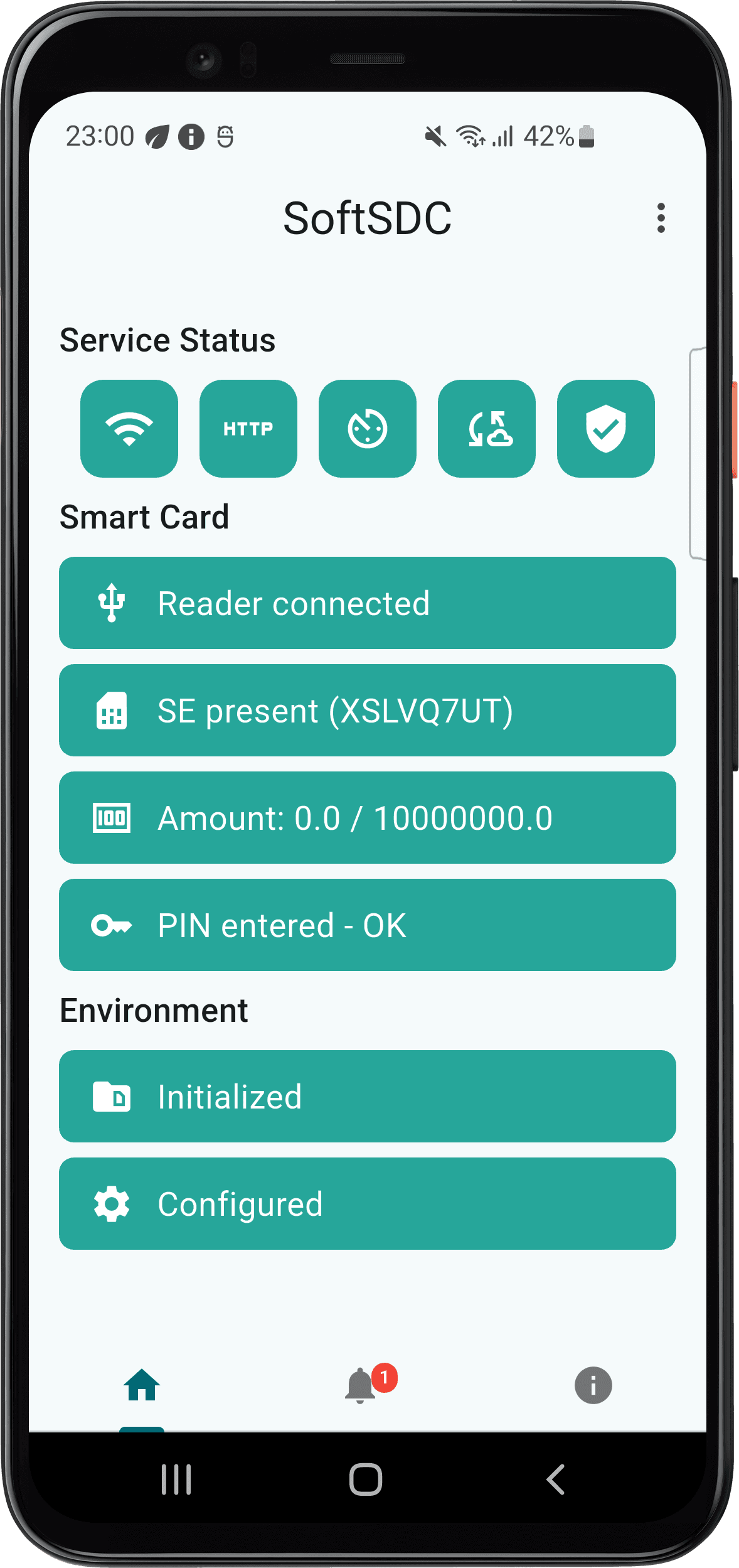
SoftSDC runs in the background
SoftSDC has two parts: the app you see, and a background service.
- The API stays available when the app window is minimized or closed.
- The service processes invoices and syncs with the Tax Authority in the background.
- The service starts when the device boots. You do not need to sign in after a restart. Insert the card and enter the PIN, and the API is ready to sign invoices.
Daily routine
At the start of the day
- Check that the smart card is in the reader.
- Enter the PIN if SoftSDC asks for it.
- Check that the status tiles on the home screen are green.
- Check the internet connection.
During the day
- Watch the unconfirmed amount on the home screen.
- Read any notifications.
- Keep enough free storage.
- Keep mobile devices charged.
At the end of the day
- Check that there are no warnings or errors.
- Check that receipts are confirmed. The unconfirmed amount goes back to 0.00 about 15 to 20 minutes after the last receipt, when online.
Rules to follow
- Never change the date or time on the device. Always use Set time automatically.
- Never remove the smart card while an invoice is being processed.
- Always enter the PIN again after a service restart.
- Never share your PIN.
Next steps
- Connect your POS. See the API reference.
- Learn the home screen and the actions menu.
- Learn how local and remote audits work.
Getting help
- Read the notification messages for details of the error.
- Check troubleshooting and the FAQ.
- Contact support with the error message, the details from the About screen and the steps that cause the problem.