Home screen
Read the SoftSDC home screen. Learn what the service status icons, smart card tiles, unconfirmed amount and environment tiles tell you.
The home screen is your dashboard. It shows at a glance whether SoftSDC is ready to sign invoices.
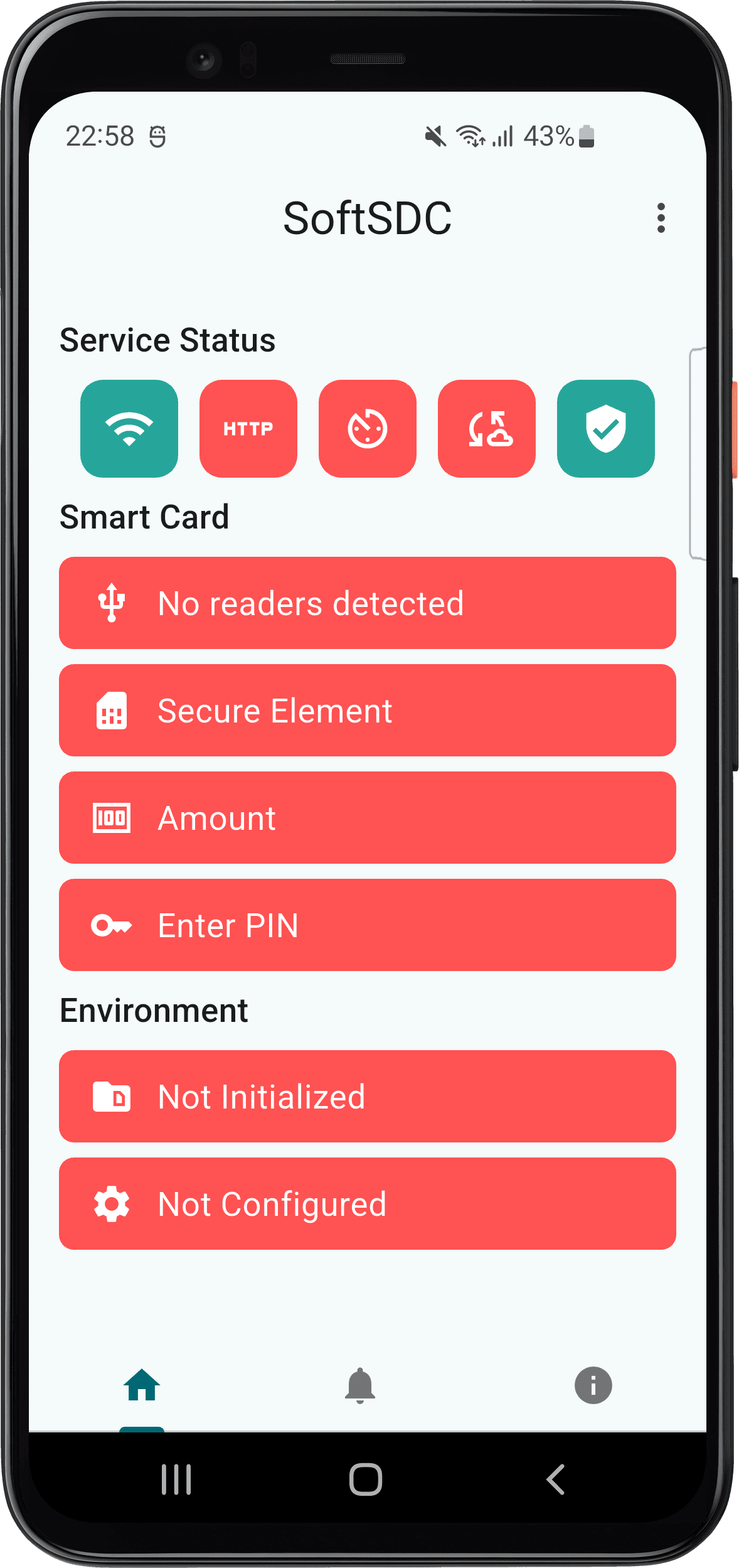
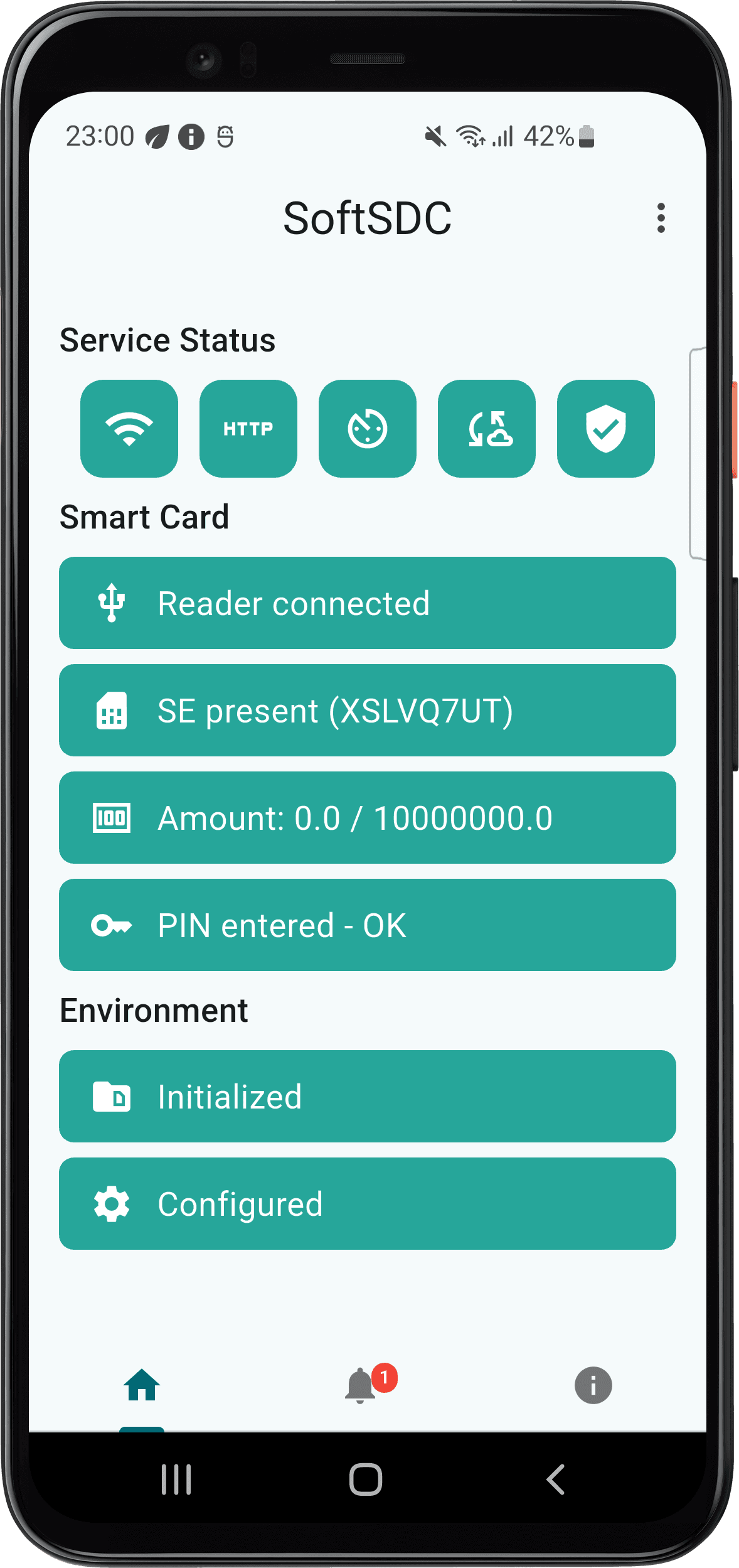
Colors
| Color | Meaning |
|---|---|
| Green | Working correctly |
| Orange or yellow | Warning, or a state that is changing |
| Red | Needs your attention |
Service status
The row of icons at the top shows the background services. These include the internet connection (Wi-Fi icon) and the API server your POS talks to (HTTP icon). Each icon turns red when that service has a problem.
Smart card
| Tile | What it shows |
|---|---|
| Reader | Reader connected, or No readers detected |
| Secure element | SE present with the UID of your card, in brackets |
| Amount | The total of unconfirmed receipts, and the limit of your secure element |
| PIN | Enter PIN until you enter it, then PIN entered - OK |
Select the Enter PIN tile to type your PIN.
The unconfirmed amount
The amount shows receipts that are signed but not yet confirmed by TaxCore, against the limit of your secure element. For example, 121.01 / 10000000.0.
It goes back to 0.00 once SoftSDC reconciles the receipts with TaxCore. This usually takes 15 to 20 minutes after the last receipt, when online. See how it works.
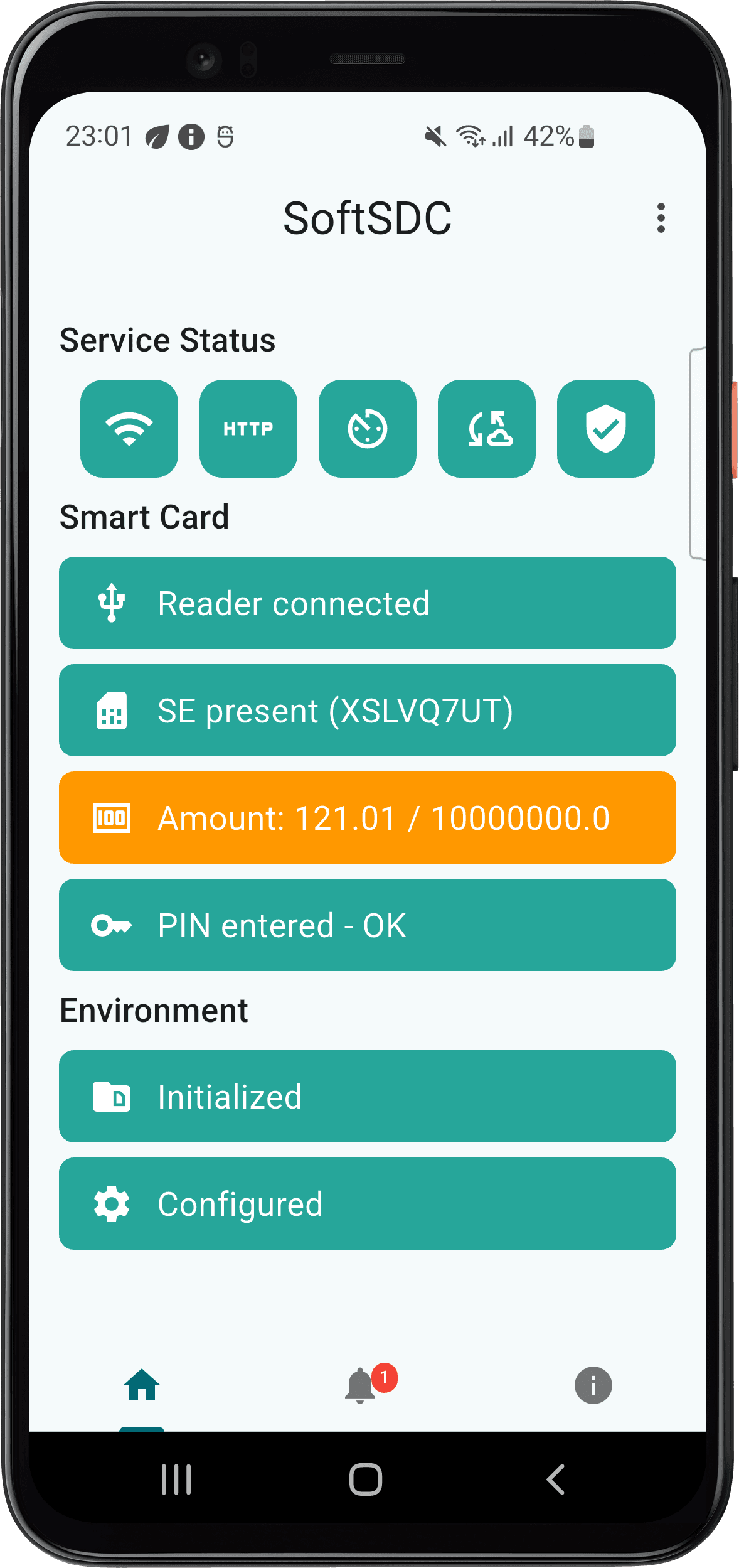
When the amount reaches 75% of the limit, SoftSDC reports that an audit is required (code 1400). When the secure element is full, it cannot sign more invoices until an audit is complete. See audit.
Environment
| Tile | Meaning |
|---|---|
| Initialized / Not Initialized | Whether SoftSDC has received its initialization data from the Tax Authority |
| Configured / Not Configured | Whether SoftSDC is fully set up to sign invoices, for example with tax rates and the verification URL |
Bottom bar
- Home opens this screen.
- Notifications (bell icon) shows alerts. A badge shows how many are new. See notifications.
- About (info icon) shows version, license and device details. See About screen.
The menu at the top right opens the actions menu.
First reader connection
The first time you connect a card reader, the system asks you to allow SoftSDC to use it. Select OK or Grant permission. This protects the reader from other apps.
Check the home screen often. Act on red and orange tiles quickly so you can keep issuing invoices.
Getting started
Launch SoftSDC for the first time, choose a trial or license, connect your card reader, insert your smart card, enter your PIN and test it.
Actions menu
What each SoftSDC action does and when to use it, from entering your PIN and restarting services to commands, local audits and test invoices.