Notifications
Understand SoftSDC notifications. Learn the color levels, where to see active and past alerts, and how to receive them on Windows and Android.
SoftSDC uses notifications to tell you about events, from critical errors to routine updates. Colors and icons show how urgent each one is.
Open notifications from the bell icon in the bottom bar of the home screen. A badge shows how many are new.
Notifications that are shown now.
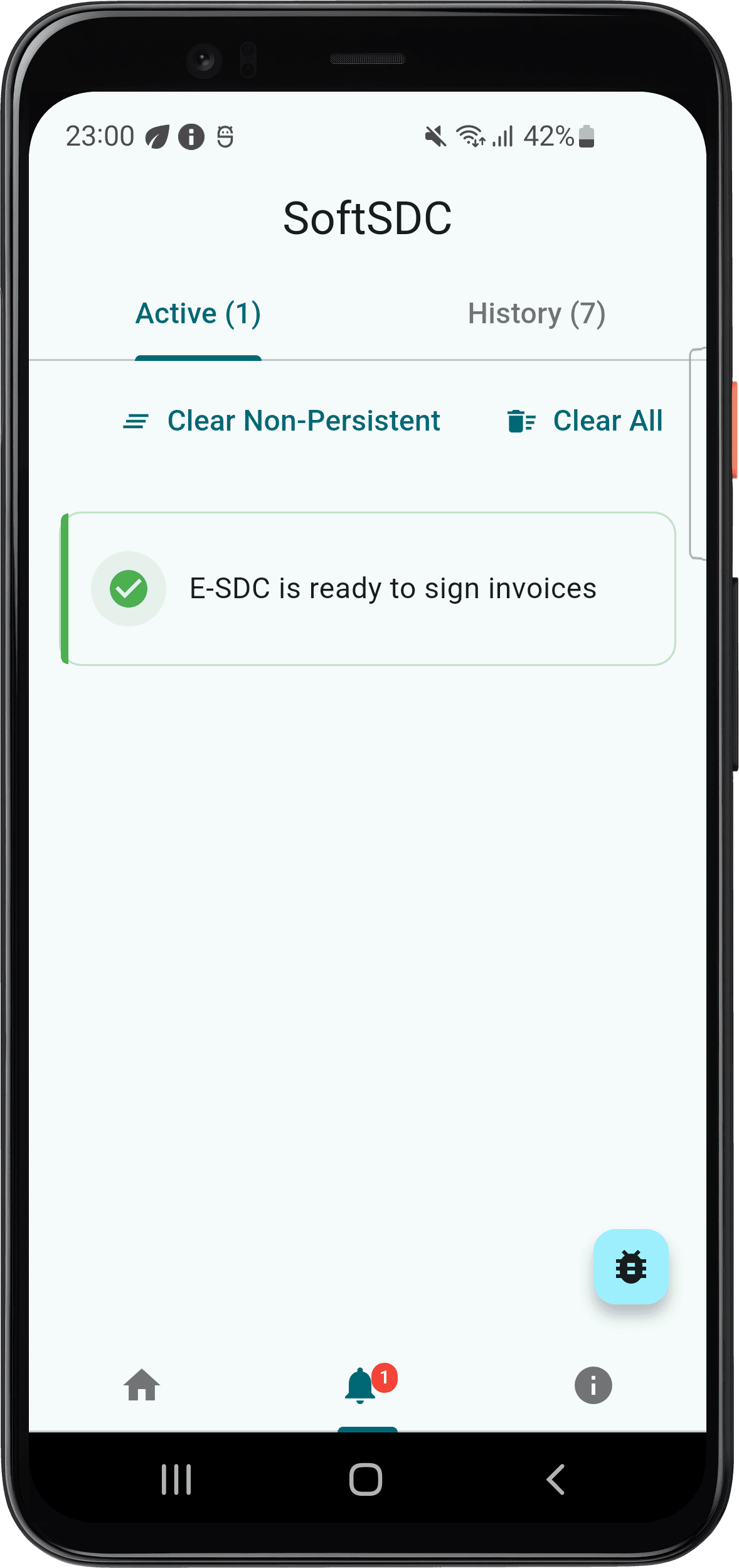
Levels
| Color | Level | Examples |
|---|---|---|
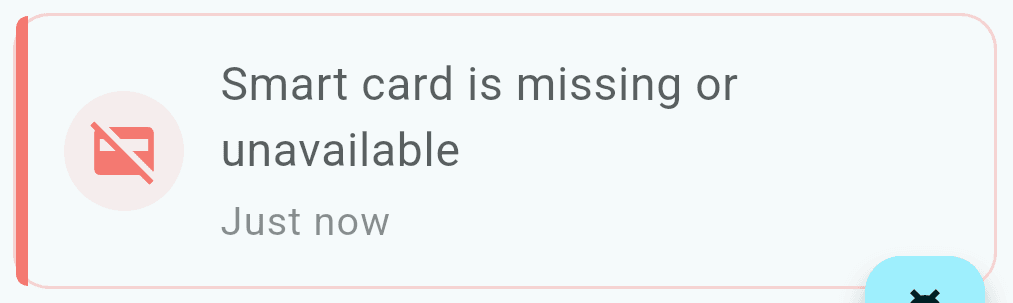
| Red | Critical. Act now. | Hardware failure, connection problems that stop SoftSDC working, smart card errors, license expired |
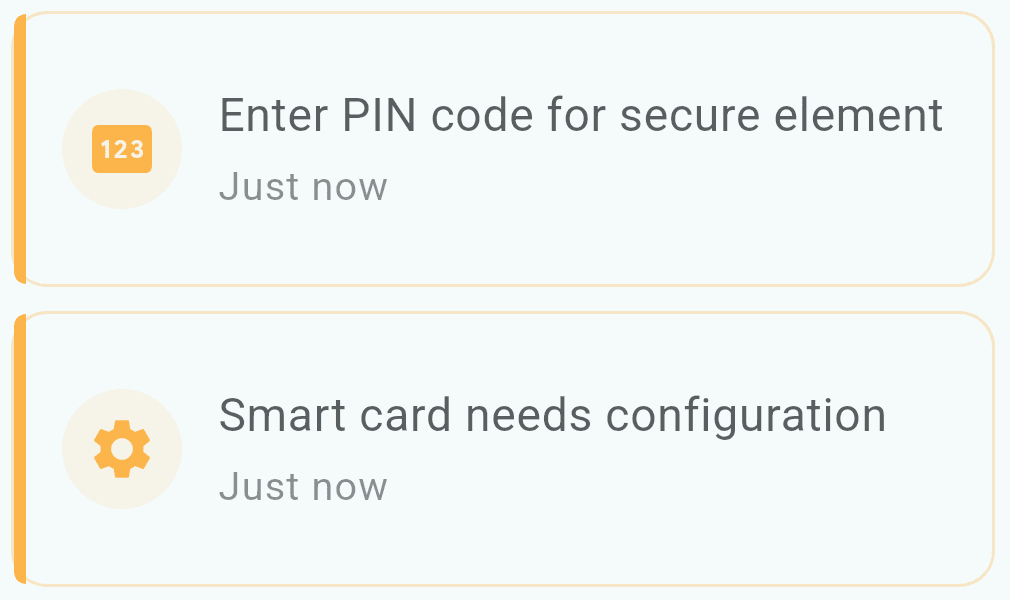
| Orange or yellow | Warning. May affect work soon. | Audit limit getting close, storage running low, unstable connection, certificate expiring soon |
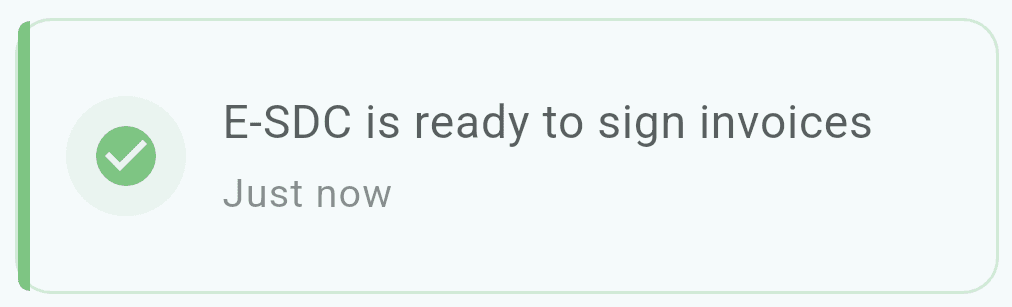
| Green | Success | Invoice fiscalized, services restarted, PIN accepted, configuration updated |
| Blue | Information | Service status updates, sync completed, background tasks running, system initialized |
Notifications outside the app
- In-app notification list
- System tray notifications
- Toast notifications for important alerts
Turn on Windows notifications for SoftSDC so you see alerts when the app is in the background.
Common notification types
| Type | Examples |
|---|---|
| Operation | Service started or stopped, API available or not, background task status |
| Security | PIN required, card inserted or removed, authentication passed or failed, secure element status |
| Compliance | Audit required, time sync problems, configuration updates, command received from the Tax Authority |
| Errors | Communication failures, processing errors, hardware problems, license problems |
An Audit required notification means it is time to run an audit from the actions menu. For fixes to errors, see troubleshooting.
Related pages
Actions menu
What each SoftSDC action does and when to use it, from entering your PIN and restarting services to commands, local audits and test invoices.
Settings
Configure SoftSDC settings, including card reader selection, refresh rate, logging, API port, timeouts, language, theme and advanced options.